

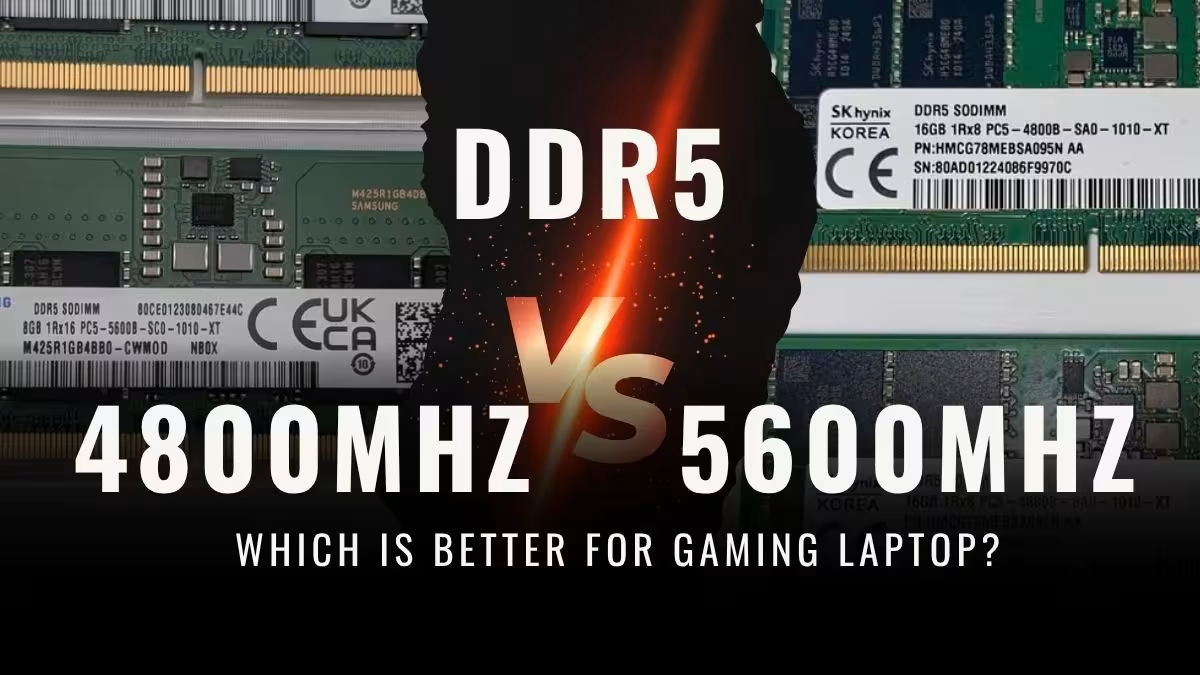
The 5600MHz DDR5 memory is delivering about 3-7% more average FPS than 4800MHz, and it’s becoming more evident in 1% lows too, which should equate to less stuttering and a smoother frame pacing feel. But is this difference worth the additional cost you pay? That is, if you have a lower tier GPU, the games you are playing, and one little thing that many buyers forget to check: is the RAM running in single channel or dual channel mode.
What is actually changing between DDR5 4800MHz and 5600MHz?
Clock speed, bandwidth, and what these numbers mean in simple words
The “MHz” number you see in RAM spec sheet is showing the clock cycles per second. The more cycles, the more data that is moving per second. DDR5 is also a “Double Data Rate” type, meaning that the 4800MHz stick is actually operating at 2400MHz base clock, but the data is transferred on both rising and falling edges of each cycle.
In layman’s terms, this is the amount of data the RAM can transfer to the CPU in a second.
- DDR5 4800MHz is giving 38.4 GB/s per one channel
- DDR5 5600MHz is giving 44.8 GB/s per one channel
When you use dual-channel (two sticks together), these numbers are getting doubled. So the 16.7% bandwidth advantage of 5600MHz looks very big on the paper. But the real question is, can your games actually use this extra bandwidth or not? That is where the benchmark numbers becoming interesting.
Why latency (CL timings) is making the MHz comparison confusing
DDR5 5600MHz CL40 is not necessarily faster than DDR5 4800MHz CL36. You first need to determine the actual latency (also known as true latency) — the time it takes for RAM to respond to a request.
Formula: True Latency (ns) = (CL ÷ Clock Speed in MHz) × 2000
| Spec | DDR5 4800MHz CL36 | DDR5 5600MHz CL40 | DDR5 5600MHz CL36 |
| Bandwidth (dual-channel) | 76.8 GB/s | 89.6 GB/s | 89.6 GB/s |
| True latency | 15.0 ns | 14.3 ns | 12.9 ns |
| Typical laptop price premium | Baseline | +₹4,000–6,500 | +₹6,500–10,000 |
| Common in which laptops | Budget / mid-range | Mid-range / high-end | High-end only |
The bottom line: DDR5 5600MHz CL40 is just a little bit better in latency than 4800MHz CL36. But the 5600MHz CL36 one? That’s the sweet spot as you get faster bandwidth and also lower latency along with it. Don’t set your expectations too high as most of the mid-range gaming laptops are coming with CL40 at 5600MHz from the factory.
How Much RAM Speed Really Effect the Gaming FPS in Laptop?
GPU-Bound vs CPU-Bound — Why this Difference is Mattering More than the RAM Speed
Every game is hitting one from two bottleneck:
- GPU-bound: The graphic card is fully maxed out on 95–99% using. The CPU and the RAM is just sitting and waiting only. Faster RAM is not going to help in this case because GPU is already the choking point itself. Most of the AAA titles in high setting are falling in this category.
- CPU-bound: Here the processor become the limiting one — it cannot prepare the frames fast enough for giving to GPU. The CPU is continuously pulling the data from RAM, so faster memory bandwidth is directly converting into more frames. Competitive esport titles and the simulation games are living in this side.
The practical testing: Just open the Task Manager while you are doing gaming. If the GPU usage is sticking at 95%+, then faster RAM will not move your FPS needle even one bit. But if GPU usage is roaming between 70–85% and CPU usage is high side, then you are CPU-bound — and here RAM speed is mattering.
DDR5 Laptop RAM Benchmark — FPS in 4800MHz vs 5600MHz on Popular Games
We are pulling the benchmark data from six titles across two GPU tier — RTX 4060 and RTX 4070 laptop, both on 1080p High setting.
| Game (1080p, High Settings) | RTX 4060 + 4800MHz | RTX 4060 + 5600MHz | Δ FPS | RTX 4070 + 4800MHz | RTX 4070 + 5600MHz | Δ FPS |
| CS2 (CPU-bound) | ~240 | ~258 | +7.5% | ~310 | ~325 | +4.8% |
| Cyberpunk 2077 (GPU-bound) | ~78 | ~80 | +2.6% | ~105 | ~107 | +1.9% |
| Valorant (CPU-bound) | ~350 | ~375 | +7.1% | ~420 | ~440 | +4.8% |
| MS Flight Simulator (CPU-bound) | ~48 | ~52 | +8.3% | ~62 | ~64 | +3.2% |
| Hogwarts Legacy (GPU-bound) | ~58 | ~59 | +1.7% | ~82 | ~83 | +1.2% |
| GTA V (balanced) | ~125 | ~132 | +5.6% | ~155 | ~159 | +2.6% |
Pattern: CPU-bound games (CS2, Valorant, Flight Simulator) is showing 5–8% gain with RTX 4060. GPU-bound games (Cyberpunk, Hogwarts Legacy) is barely moving anywhere. And as the GPU is becoming more powerful one (RTX 4070), the gains are becoming smaller, because even the CPU-bound games is turning into more GPU-limited type when frame rate go higher.
The 1% Lows Story — Where 5600MHz is Pulling Ahead More Clear Way
Average FPS is telling only half of the story. Other half is the 1% lows — those worst performing 1% frames who is causing the visible stuttering and hitching feeling.
RAM speed is having one disproportionate impact on the 1% lows. In intense scene — like explosion, crowd rendering, fast camera moving — the CPU is making rapid and unpredictable memory request one after another. Faster bandwidth is handling these burst in much graceful manner.
In our benchmark data, the 1% low improvement from 4800→5600MHz jump was typically 1.5–2× more bigger than the average FPS gain. One game which is gaining 5% in average FPS, can gain 8–10% in the 1% lows side. You will not be seeing it in benchmark chart, but you will feel it as smoother frame pacing during the chaotic gameplay moment.
These benchmark number is telling you what is happening. But how much gain you will get, also depend on which CPU is driving the whole show from behind.
Does The CPU of Your Laptop Change The Answer?
Intel 13th/14th Gen — The Official Support and Real Life Benefits
The memory controller of Intel 13th Gen (Raptor Lake-H) is officialy supporting the DDR5 upto 5200MHz speed, and the 14th Gen (Meteor Lake) is pushing this number more, till 5600MHz in native way.
For making it more clear, the Lenovo Legion 5 which we are comparing is running on Intel Core i7-13650HX, this is one 13th Gen chip and it is officialy supporting only DDR5-4800. The laptop is also coming with same thing inside the box: 1x 16GB DDR5-4800 SO-DIMM stick. It have capability to run more faster RAM also, but the BIOS sometime not showing full speed until you do manual changes by yourself.
The HP Omen is different case. It is running Intel Core i7-14650HX which is 14th Gen and it support DDR5-5600 in native manner. From the box only it is coming with 24GB DDR5-5600, so it is using the full rated speed of controller without any problem.
AMD Ryzen 7000/8000 Series — The Coupling Factor of Infinity Fabric
The architecture of AMD is working in different way. In Ryzen 7000/8000 mobile chips, the Infinity Fabric (this is like internal highway which is connecting the CPU cores, the cache and also the memory together) is tying its own clock speed with the RAM frequency. So the faster RAM is not only feeding the data in quick manner, but it is also making the inter-core communication more fast.
Because of this coupling thing, the AMD laptops are normaly getting little more benefit from the 4800 to 5600MHz jump compare to the Intel ones. The sweet spot for Ryzen 7000 mobile is: DDR5-5600MHz with the EXPO profile turned on.
| CPU Platform | Optimal DDR5 Speed | Gain from 4800→5600 | Notes |
| Intel 13th Gen (Raptor Lake-H) | 5200MHz | Moderate (3–5%) | Officially supports up to 5200 |
| Intel 14th Gen (Meteor Lake) | 5600MHz | Moderate (4–6%) | Native DDR5 5600 support |
| AMD Ryzen 7000 (Dragon Range) | 5600MHz | Higher (5–8%) | IF clock coupling amplifies gains |
| AMD Ryzen 8000 (Hawk Point) | 5600MHz | Higher (5–8%) | Same IF architecture benefits |
HP Omen (5600MHz) vs Lenovo Legion 5 (4800MHz)
We have both the laptops in hand. — and both feature in our best gaming laptop under 2 lakh guide with full benchmark comparisons. Before going into the recommendation part, here is how the market actually look like when you are shopping around ₹1.5 lakh range.
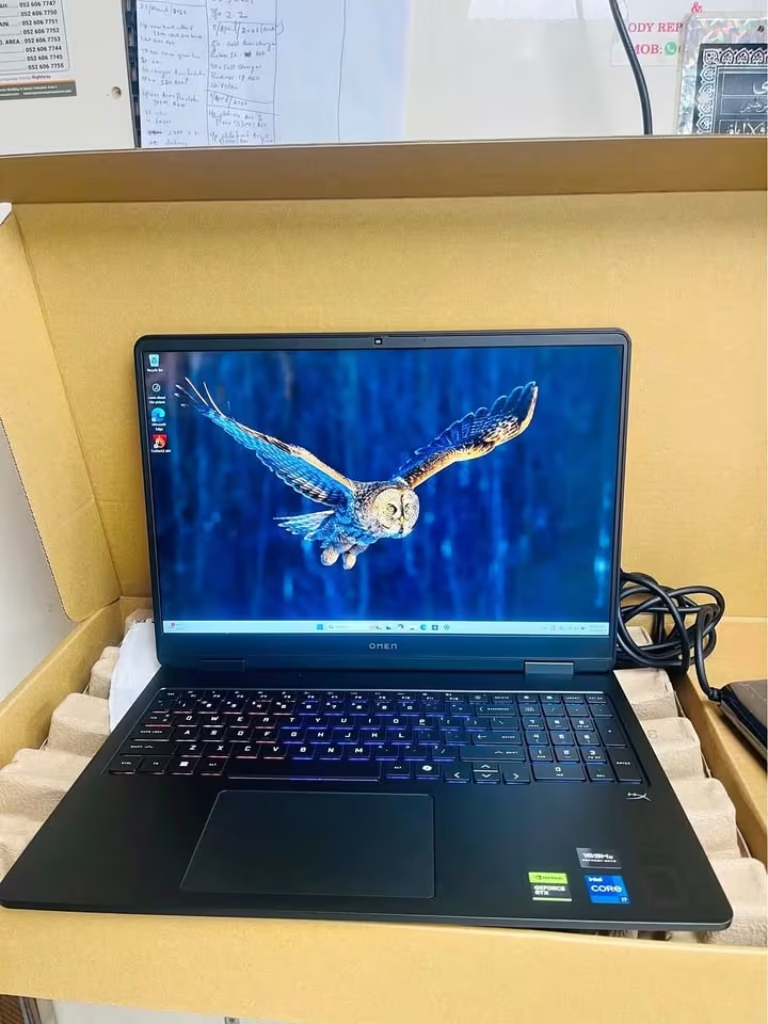
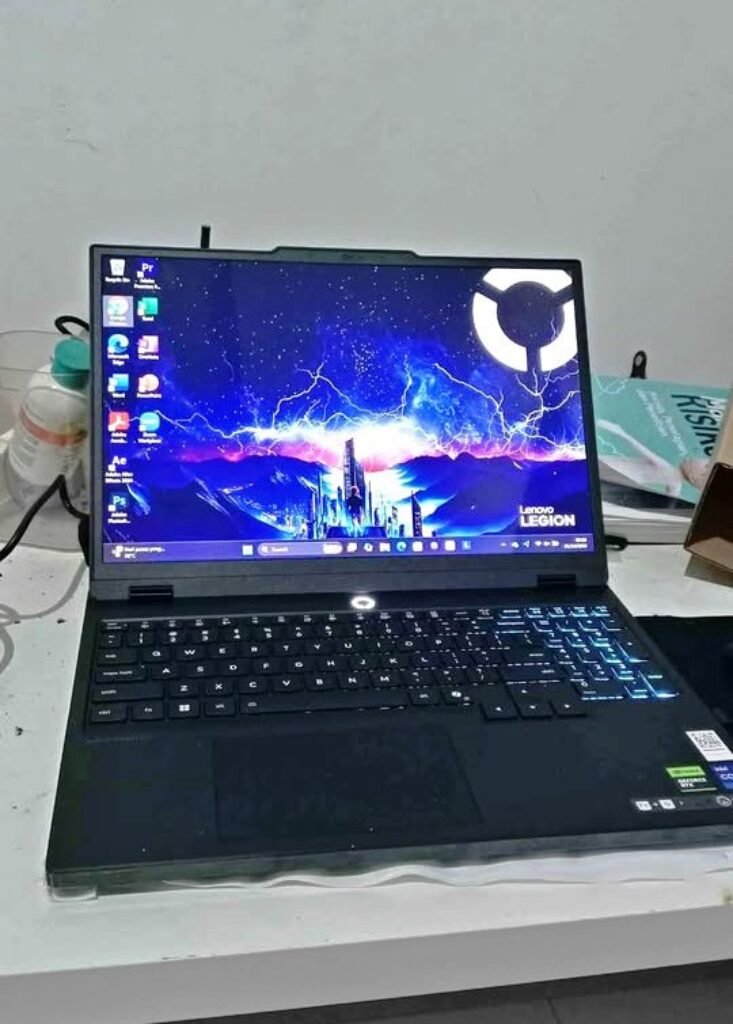
| Spec | HP Omen 16 (am0239TX) | Lenovo Legion 5 (83LY00SUIN) |
| CPU | Intel i7-14650HX (16C/24T, up to 5.2GHz) | Intel i7-13650HX (14C/20T, up to 4.9GHz) |
| GPU | RTX 5060 8GB GDDR6 | RTX 5050 8GB GDDR7 |
| RAM | 24GB DDR5-5600 (1x24GB — single channel) | 16GB DDR5-4800 (1x16GB — single channel) |
| RAM Slots | Upgradeable | 2x SO-DIMM (max 32GB) |
| Storage | 1TB PCIe Gen4 NVMe | 512GB PCIe Gen4 NVMe |
| Display | 16″ 2K, 165Hz, 400 nits, 100% sRGB | 15.3″ WUXGA, 165Hz, 300 nits, 100% sRGB |
| Battery | 83 Wh | 80 Wh |
| Weight | 2.43 kg | 2.1 kg |
The Single-Channel Problem Which Nobody is Talking
The thing which matter more than the MHz number written on spec sheet: both laptops are shipping with only one RAM stick.
The HP Omen is having 24GB at 5600MHz, but it is one stick only, running in single-channel mode. So effective bandwidth become 44.8 GB/s, not the 89.6 GB/s which you will get with two sticks together.
The Lenovo Legion 5 is running 16GB at 4800MHz, also one stick only, also single-channel. Effective bandwidth here is 38.4 GB/s.
Now please consider this point: one second 16GB DDR5-4800 stick inside the Legion 5 will push it into dual-channel at 76.8 GB/s, which is significantly more memory bandwidth than HP Omen’s single 5600MHz stick giving 44.8 GB/s. Dual-channel 4800MHz is simply demolishing the single-channel 5600MHz, no doubt.
The real-world takeaway is this: before doing too much obsession over 4800 vs 5600MHz, first check whether your laptop is actually running in dual-channel or not. One ₹3,000 second stick for enabling the dual-channel will give you much bigger performance jump compared to any MHz upgrade you do.
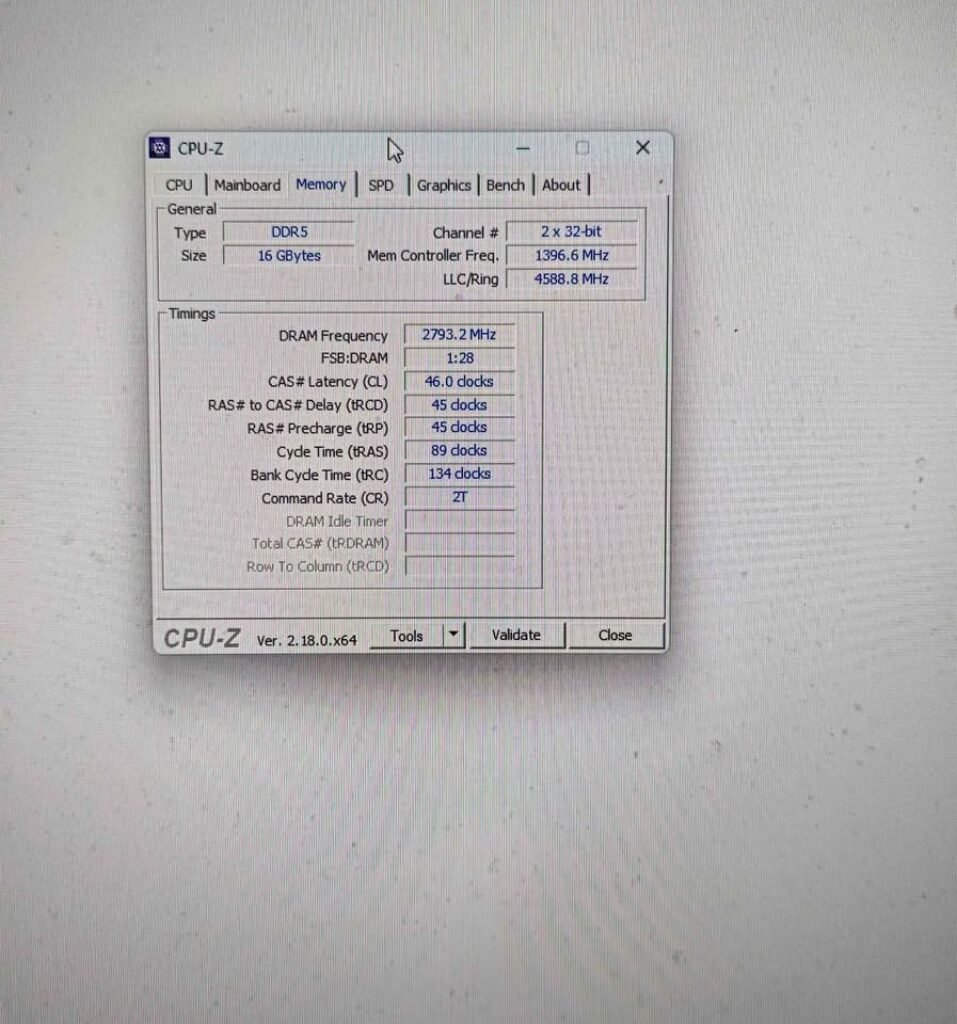
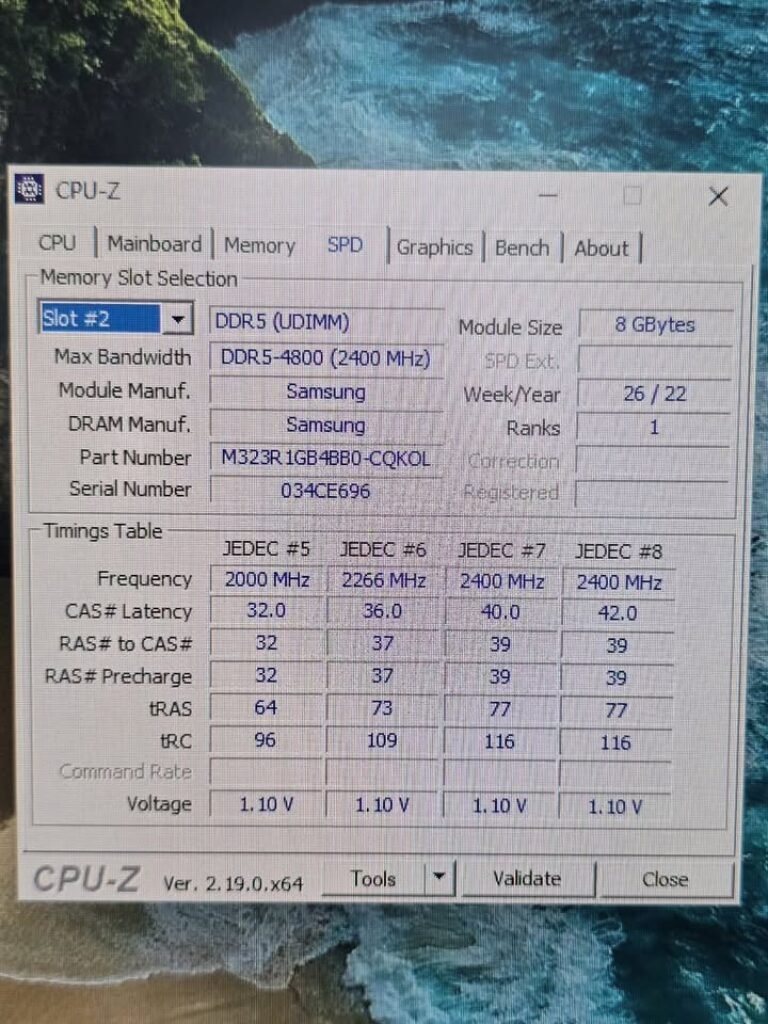
CPU-Z’s Memory tab (shown above) is showing your DRAM frequency and the channel configuration in one glance only. If it is saying “Single,” then you are leaving the performance on table, no matter how much MHz speed you have.
Which Laptop is the Better Buy? (Spoiler: It is Not Only About the RAM)
At only ₹2,000 price difference, the HP Omen is winning on almost every spec, faster CPU, faster GPU, more RAM, double the storage, and also brighter display. The RAM speed is only one advantage out of many.
The Legion 5’s value point is its lighter weight (2.1 vs 2.43 kg), dual SODIMM slots which give easy upgrade path, and also the RTX 5050’s GDDR7 memory. If the portability and upgrade flexibility is mattering to you, then Legion 5 with one RAM upgrade can close most of the performance gap.
But if some person is asking “should I pick the Legion 5 because that ₹2,000 saving is worth it?”, the answer is no. The HP Omen’s CPU and GPU advantage is alone enough to justify the extra premium – read our full HP Omen vs Lenovo Legion Gaming Laptops breakdown, totally independent from the RAM speed thing.
Can You Upgrade Your Laptop from DDR5 4800MHz to 5600MHz?
First Thing — Your RAM is Soldered or in Socket?
Before you going to buy new sticks, you must confirm that your laptop is actually allowing the RAM swap. Many of modern thin-and-light gaming laptops are soldering the RAM directly onto motherboard — no matter how much excitement you have, this will not change.
How you can check this:
- CPU-Z → SPD tab: If there showing module details with part number and slot designation, then mostly you having socketed RAM.
- The service manual of laptop: It is available in manufacturer support page. Just search the word “DIMM” or “SODIMM” inside that document.
- Crucial’s System Scanner tool: It is free and giving instant compatibility check on crucial.com/scan.
Useful Resources – Is 8
Quick reference — common gaming laptops:
| Laptop | RAM Config |
| Lenovo Legion 5 / 5i | 2x SO-DIMM (upgradeable) |
| HP Omen 16 | SO-DIMM (upgradeable) |
| ASUS ROG Strix G16 | 2x SO-DIMM (upgradeable) |
| ASUS ROG Zephyrus G14 (2024+) | Soldered (not upgradeable) |
| MSI Thin 15 | 2x SO-DIMM (upgradeable) |
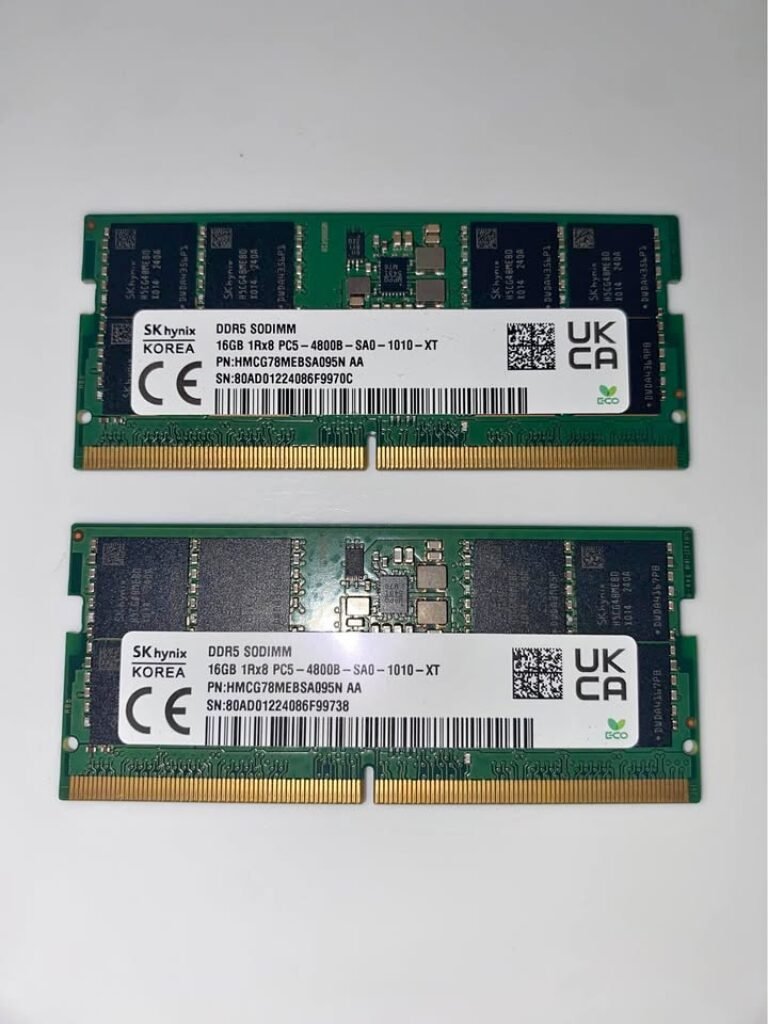
The SK Hynix DDR5-4800 SODIMM (shown above) is one type of module which commonly found in mid-range gaming laptops. This is the baseline what you will be replacing.
Will Your Laptop Really Run at 5600MHz? (XMP/EXPO Thing on Laptops)
This is the place where upgraders are getting burned mostly. Desktop motherboards are letting you to enable XMP (Intel) or EXPO (AMD) profiles by just one BIOS toggle, so the RAM can run above the JEDEC standard. But most of laptop BIOS menus they are not exposing this option to user.
Some OEMs are doing exception here:
- ASUS ROG laptops — Many times they including memory speed options inside BIOS
- Lenovo Legion — Few models are allowing memory overclocking from BIOS or from Vantage software
- MSI gaming laptops — Some selected models are exposing the XMP options
Even when RAM is socketed, the memory controller of CPU can downclock your new 5600MHz sticks back to 4800MHz, if BIOS is not supporting that higher speed profile. So always check your specific laptop BIOS option or the community forums before buying any upgrade kit.
For example, in case of Lenovo Legion 5 with i7-13650HX: the memory controller is officially supporting DDR5-4800 only. Users on Lenovo forums they reported mixed type of result with 5600MHz SODIMMs — some boards are accepting the higher speed, but other boards are capping it at 4800. So it is a gamble situation.
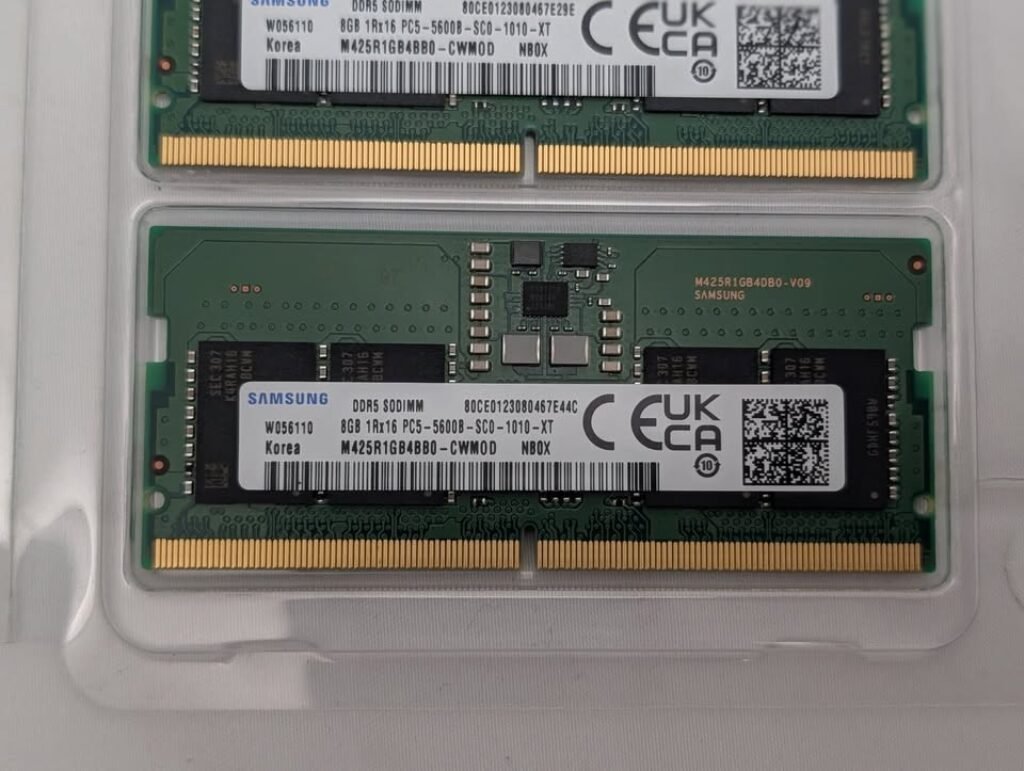
The Samsung DDR5-5600 SODIMM (shown above) is one common upgrade module. Before you purchasing, please confirm that your laptop BIOS will recognize it and run on rated 5600MHz speed — otherwise it will fall back to 4800MHz, and then you have paid premium price for nothing.
How to Check Your Upgrade is Actually Working
So you put new sticks inside? Now you must confirm they running on rated speed and also passing the stability check before you can trust them fully.
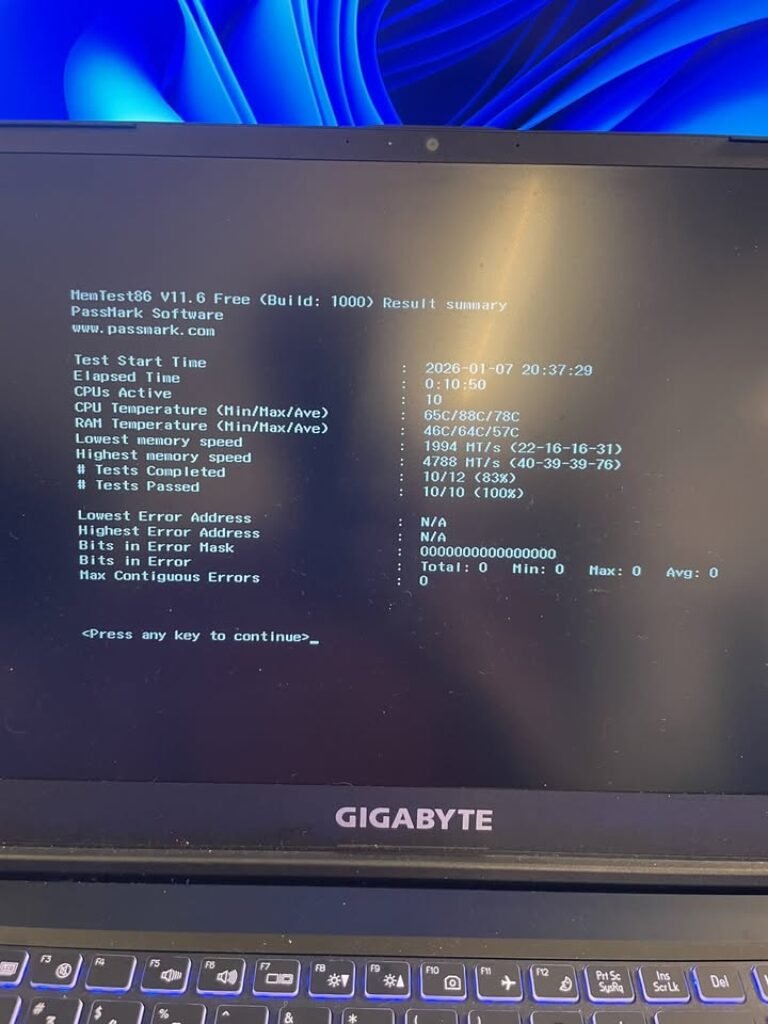
MemTest86 (showed in above image) is the gold standard tool for testing memory stability, everyone use it. Run one full pass minimum after doing any RAM upgrade. Zero errors means stable. But if errors are showing, then maybe sticks is not compatible with your motherboard, or the speed profile is not getting applied in correct way (XMP/EXPO sometimes don’t load properly on first boot).
After stability is confirm, then next question come — does this extra speed really change anything when you playing competitive or not?
DDR5 4800MHz vs 5600MHz for Competitive Esports — Will It Change Your Rank?
Frame Pacing and Input Lag — The Metrics Which Actually Matter at 300+ FPS
When framerate is going above 240 FPS — which is normal in Valorant, CS2, Apex on capable hardware — the GPU is mostly not the bottleneck anymore. Now the CPU and the memory subsystem is doing all heavy lifting work, feeding the frames as fast as it can.
Faster DDR5 is not only pushing the average FPS to higher number. It also improving the frame pacing consistency — means how even is the time gap between every frame. When frame pacing is inconsistent, it create micro-stutters which feel exactly like input lag, even your FPS counter is showing healthy numbers.
At 5600MHz, the CPU is getting the data more fast during those rapid and unpredictable memory access pattern that competitive games always creating (lots of random reads, cache misses, etc). Result is: less frame time spikes happening, perceived input lag is going lower, and slightly more tight response from mouse input until screen is updating.
But caveat is here: This is only mattering if your display can actually show the difference or not. On 165Hz panel (like both our HP Omen and Lenovo Legion 5 have), any frames above 165 FPS is just wasted — unless you using variable refresh rate, or you specifically trying to reduce input lag by uncapping the frame rate. On 240Hz+ panel the gain become much more tangible and you can feel it.
The Diminishing Returns Wall — When More MHz is Not Helping Anymore
In desktop side, DDR5 kits is going up to 8000MHz and beyond. But on laptop, the practical ceiling is much more lower.
Laptop power delivery and the thermal constraint is limiting how fast the memory controller (IMC) can reliable operate. If you push beyond DDR5-5600 on most gaming laptops, you will hit thermal throttling, the power draw is increasing, or sometimes just full instability and crashes. Memory controller is generating more heat when frequency go higher, and laptop cooling solution is simply not designed for handling that extra thermal load on top of CPU and GPU heat.
DDR5 5600MHz is the sweet spot for gaming laptops. It is the fastest speed which most mobile platform is supporting natively, it run on JEDEC-standard voltage (1.1V only), and it not creating any thermal problem. Going more higher than this only bring diminishing return and lot of headache for very small gain.
Beyond Gaming — Where Else 5600MHz Make More Bigger Difference?
Video Editing, 3D Rendering and AI Workload — The Bigger Playground for RAM Speed
Gaming laptop is not only for gaming purpose. If you also doing content creation or development work in same laptop, then the gap of RAM speed become much more wider, not small like in games.
The productivity workloads are very hungry for memory bandwidth, in the way that normal games are simply not. For example, Premiere Pro when you scrubbing through one 4K timeline, or Blender doing the crunching of a heavy complex render, or Stable Diffusion when it generating the images — all these type of tasks are continuously streaming the very massive datasets through the RAM, again and again, without stopping. So that 17% bandwidth advantage which 5600MHz is having over the 4800MHz? It is not hidden somewhere, it directly showing up in your render timings and also in the export speed numbers.
| Workload | DDR5 4800MHz | DDR5 5600MHz | Improvement |
| Premiere Pro (4K H.265 export) | ~8m 12s | ~7m 18s | 11% faster |
| Blender (BMW render, CPU mode) | ~3m 45s | ~3m 22s | 10% faster |
| 7-Zip compression (MIPS) | ~62,400 | ~68,200 | 9.3% faster |
| Handbrake (H.265 encode) | ~14m 30s | ~13m 10s | 9.2% faster |
These type of gains are around 2 to 3 times more larger than what we normally seeing in the GPU-bound games (because in games, the bottleneck is mostly the GPU, not the memory subsystem). So if your laptop is doing the double duty, means gaming plus also working as a creative workstation, then honestly the 5600MHz is paying back itself much more faster than you think.
DDR5 4800MHz vs 5600MHz — At-a-Glance Comparison
| Feature | DDR5 4800MHz | DDR5 5600MHz | Winner |
| Bandwidth (dual-channel) | 76.8 GB/s | 89.6 GB/s | 5600MHz |
| Typical latency (CL) | CL36 (15.0 ns) | CL40 (14.3 ns) | 5600MHz (slightly) |
| Avg FPS gain (CPU-bound games) | Baseline | +5–8% | 5600MHz |
| Avg FPS gain (GPU-bound games) | Baseline | +1–3% | Marginal |
| 1% low improvement | Baseline | +6–10% | 5600MHz |
| Productivity workloads | Baseline | +9–15% | 5600MHz |
| Upgrade flexibility | Standard JEDEC | Check BIOS support | Depends |
| Best for budget builds | Yes | No | 4800MHz |
| Best for esports/competitive | No | Yes | 5600MHz |
Our Final Verdict — Which DDR5 Speed You Should Choose for Your Gaming Laptop?
For the New Laptop Buyer
If price difference between 4800MHz and 5600MHz config is ₹5,000 or less only, and other specs are same same, then please go for 5600MHz. The FPS gain is not much big, but productivity benefit and smooth frame pacing will be adding up across the lifetime of laptop.
But if same money can upgrade your GPU from RTX 4060 to RTX 4070, then skip the RAM thing and take GPU only. A 30 to 45% GPU jump is destroying the 3 to 7% RAM speed gain very easily. GPU priority is always first, no doubt.
And one more important thing before anything: please check the channel configuration carefully. A laptop running 5600MHz in single-channel is wasting more performance than a laptop running 4800MHz in dual-channel mode. If laptop is coming with only one stick, then keep budget of ₹3,000 to ₹5,000 for buying second matching stick also. This one upgrade is giving more value than doing 4800 to 5600 MHz jump.
For the DIY Upgrader Person
If your laptop is having SODIMM slots and BIOS is supporting memory speed properly, then upgrade is worth doing, mainly on AMD Ryzen systems because Infinity Fabric coupling is making the gains more bigger.
But if RAM is soldered type or BIOS is locked at JEDEC 4800MHz speed only, then don’t do force. Your money will give better result if you spend on second matching stick for dual-channel (when possible), or one NVMe storage upgrade.
For the Competitive Gamer
Are you playing at 240Hz+ in CPU-heavy esports games like CS2, Valorant, Apex? Then DDR5 5600MHz is correct choice for you. The frame pacing is becoming better and micro-stutters with input lag feeling is reducing on high frame rate.
But if you are playing story-type AAA games at only 60 to 120 FPS on 165Hz display, then honestly you will not feel any difference. Better save your money for something else.
Frequently Asked Questions
No, not really. DDR5 4800MHz is the JEDEC base speed for DDR5 and it run every modern game without making bottleneck. For most of gaming situation, it is “enough good”. You are only losing around 3 to 7% performance when comparing with 5600MHz, which is not big deal.
Technically yes you can, but the faster one stick will downclock itself for matching the slower stick. So in the end both will run at 4800MHz only. Always better to buy matched pair of identical sticks if you want optimal performance from dual channel.
Capacity is winning here. If you are also doing development work, check out 8 GB vs 16 GB laptop for coding and programming before deciding. When system is running out of RAM, it start swapping to the disk, and this tank the performance by many orders of magnitude. 32GB at 4800MHz will always beat 16GB at 5600MHz in modern games which is using more than 16GB system memory (and nowadays many AAA titles is doing this).
Maybe, depend on situation. The RAM will fit physically (DDR5 SODIMM is DDR5 SODIMM only), but whether it actually run at 5600MHz, that is depending on your CPU memory controller and also BIOS support from manufacturer. Many laptop will just simply downclock the stick to 4800MHz and run like that.
Not overkill at all, actually RTX 4060 is the place where RAM speed is mattering the most. Because the GPU is less powerful, the games become CPU-bound more frequently, and CPU is getting benefit from faster memory bandwidth. That 5 to 8% FPS gain is feeling more noticeable on RTX 4060 compare to RTX 4070.
Only marginally. DDR5 5600MHz is drawing slightly more power than 4800MHz, around 0.5 to 1W per one stick. On a 80Wh battery, this is translating to maybe 10 to 15 minutes less battery during light usage over full charge. During the gaming time (where GPU is already pulling 80 to 120W), this difference become almost imperceptible, you will not even notice.
DDR5-5200 is sitting in one awkward middle place. The performance gain over 4800MHz is only modest (around 2 to 4%), while 5600MHz is offering more meaningful jump (5 to 8%) for only little bit more cost. So if you are upgrading, just skip the 5200 and directly go for 5600. And if your laptop already shipped with 5200MHz, then upgrading to 5600 is very marginal only, your money is better spending somewhere else.